Managing assets
An asset is anything you track over time, sorted by category: a machine, a piece of equipment, a vehicle, an installation. Its page gathers its documents (inspection reports, service reports, quotes), its observations — the log of what the field notices —, its actions — what is done about what was seen — and the QR code to stick on it.
Asset management is enabled per organization. If the Assets entry doesn’t appear in your menu, it isn’t enabled for your organization yet: contact us to open it.
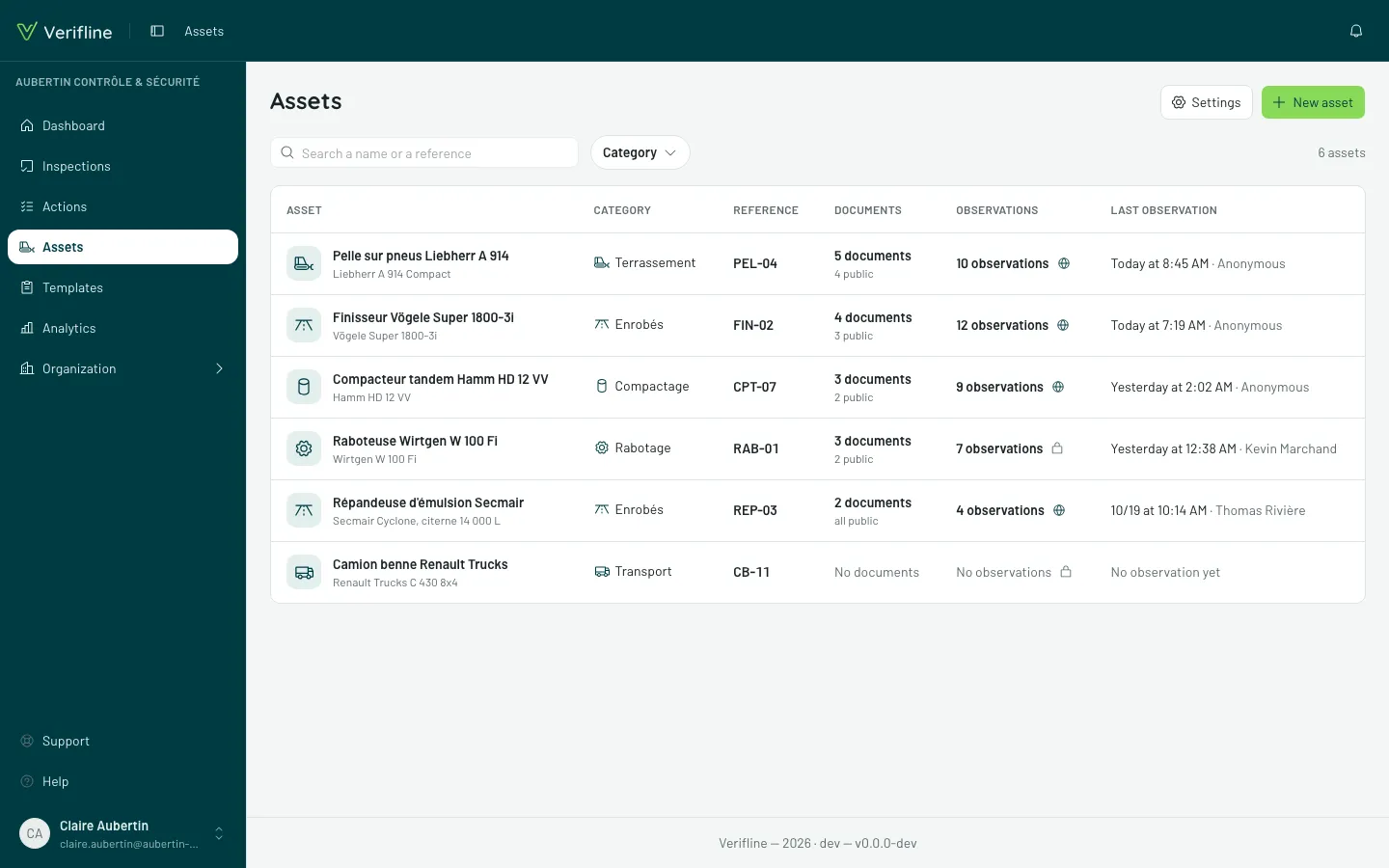
The list
Section titled “The list”Assets shows all your assets: their category, their reference, their documents (how many, and how many are public), their observations — the globe icon says their history can be read without an account, the padlock that it stays private — and the last observation, signed. Assets that were talked about recently come first.
Search a name or a reference and the Category filter narrow the list.
Creating an asset
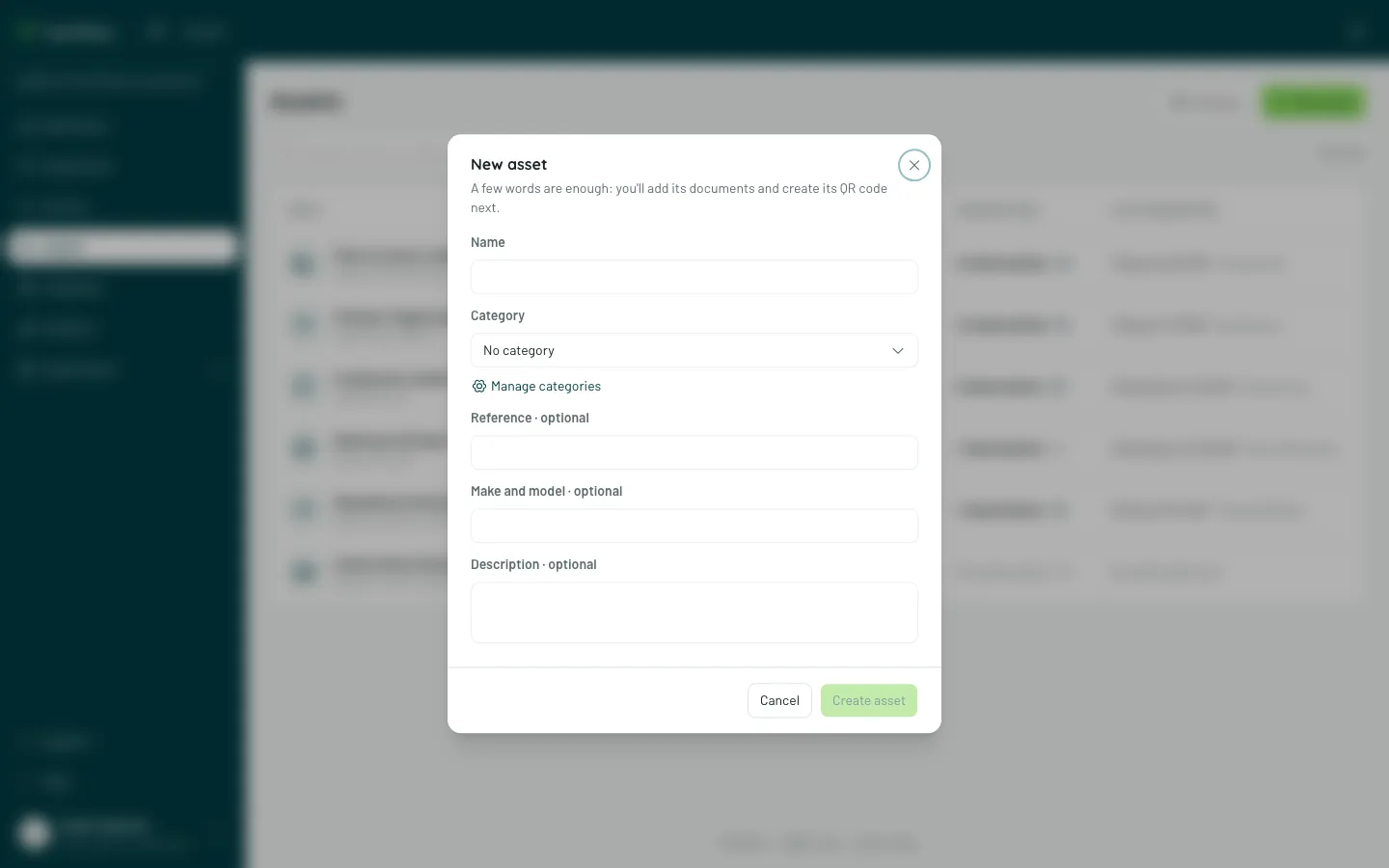
Section titled “Creating an asset”New asset asks for a few words: a Name, a Category, and if needed a Reference, the Make and model, a Description. Documents and the QR code come next, on the asset page, where creating it takes you.
Categories
Section titled “Categories”In Assets → Settings, the Categories card groups your assets and gives them an icon: in the list, on the asset page and on the page opened by the QR code. New category asks for a name and an icon, with a preview of what the list will show.
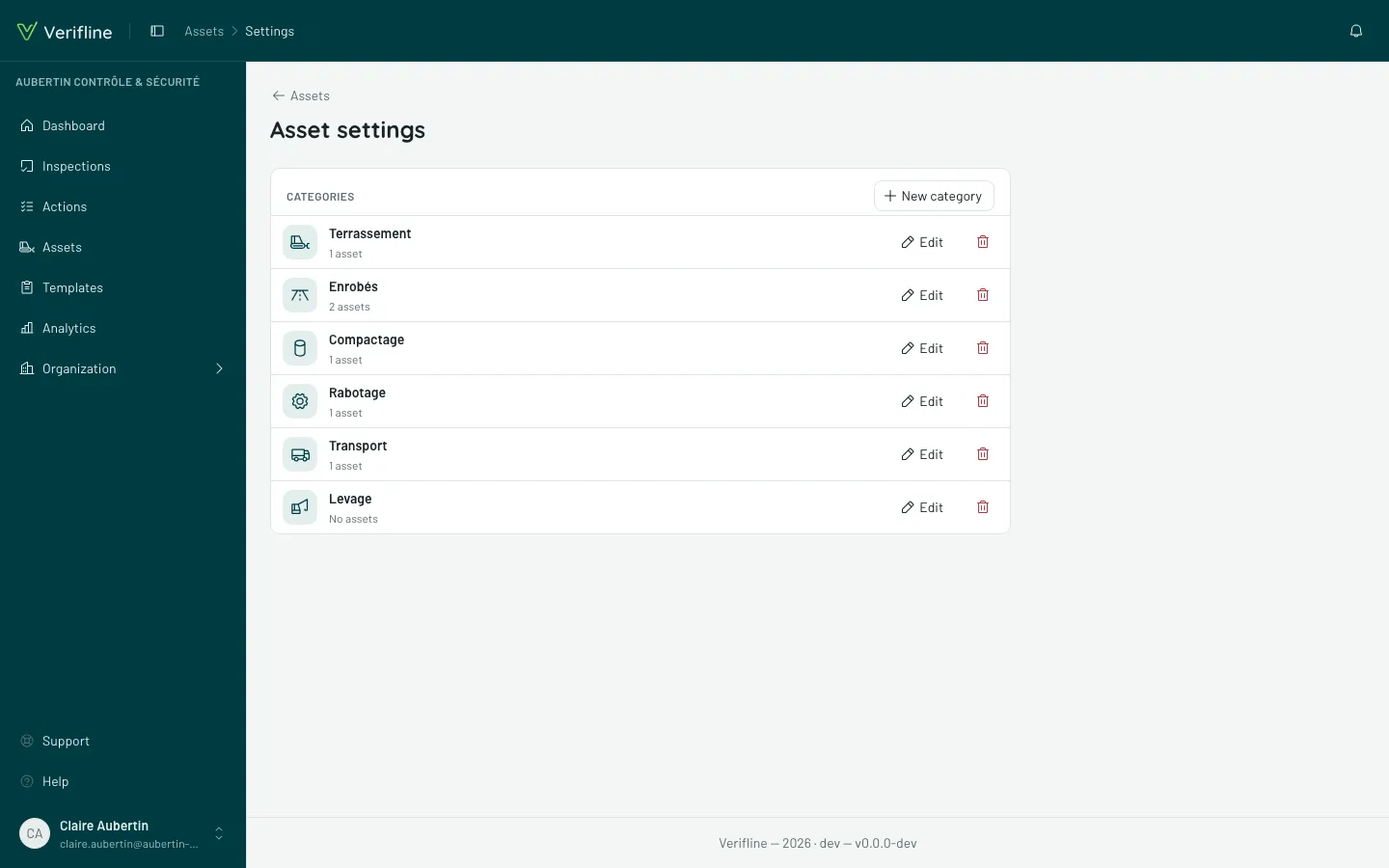
Deleting a category doesn’t delete its assets: they stay, without a category.
An asset’s page
Section titled “An asset’s page”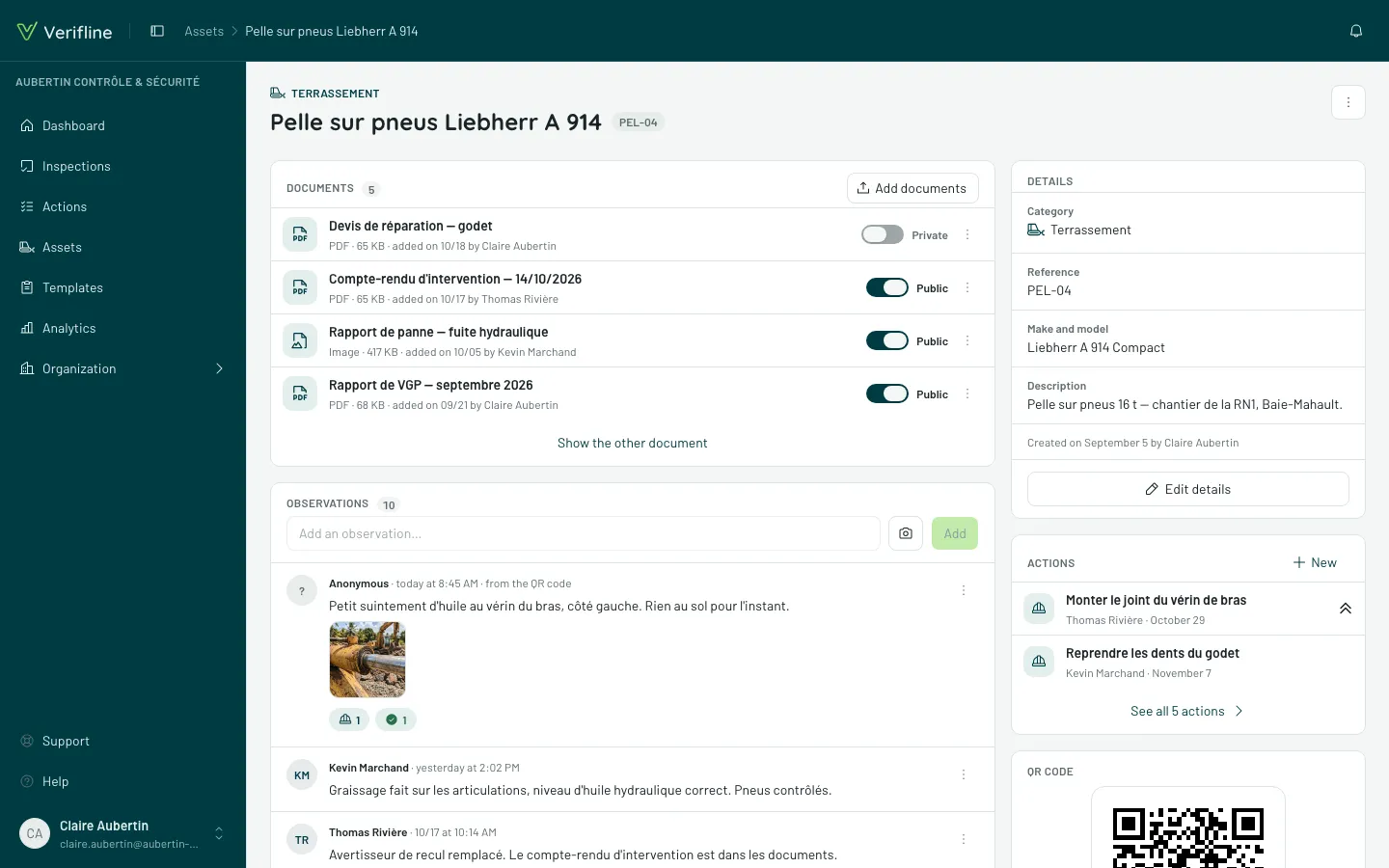
Documents
Section titled “Documents”Add documents accepts several files at once: PDF, images, Word, Excel, PowerPoint. Each document arrives Private:
- a Public document can be read without an account, from the QR code;
- a Private document stays reserved for members who can see assets.
Each row’s switch moves a document from one to the other. Its menu lets you Rename or Delete it. A document made private again no longer opens from the QR code, even through a saved link.
The card shows the first four documents; Show the other documents opens the rest. The QR code page does the same.
Observations
Section titled “Observations”Observations are the asset’s log: who saw what, when, with photos. What can be seen of them without an account is set in the QR code card.
To add yours, write it at the top of the card, attach a photo if needed, then Add: it’s signed with your name. An inappropriate observation is removed from its menu, Remove observation, with its photos.
Under each observation, a badge says what was done about it: Open or Completed for the action born from it, their counts if there are several. On a computer, hovering over it shows the status and title of each. Tapping it opens the action — or, if there are several, their list, where each line opens its own.
On a computer or a tablet, an action opens over the asset’s page: you work on it — due date, person, messages, “Mark complete” — without leaving the asset, then Esc, ✕ or a click beside it closes it. The address follows the open action, and the link can be shared. On a phone, it takes the whole screen.
Details
Section titled “Details”What’s known about the asset — category, reference, make and model, description — and Edit details.
Actions
Section titled “Actions”The Actions card says what is under way on the asset: one row per open action — the hard hat on the left, who handles it and the due date, the double chevron when the priority is high. At the bottom, See all 4 actions opens the list of actions filtered on the asset, completed ones included. New creates an action for the asset.
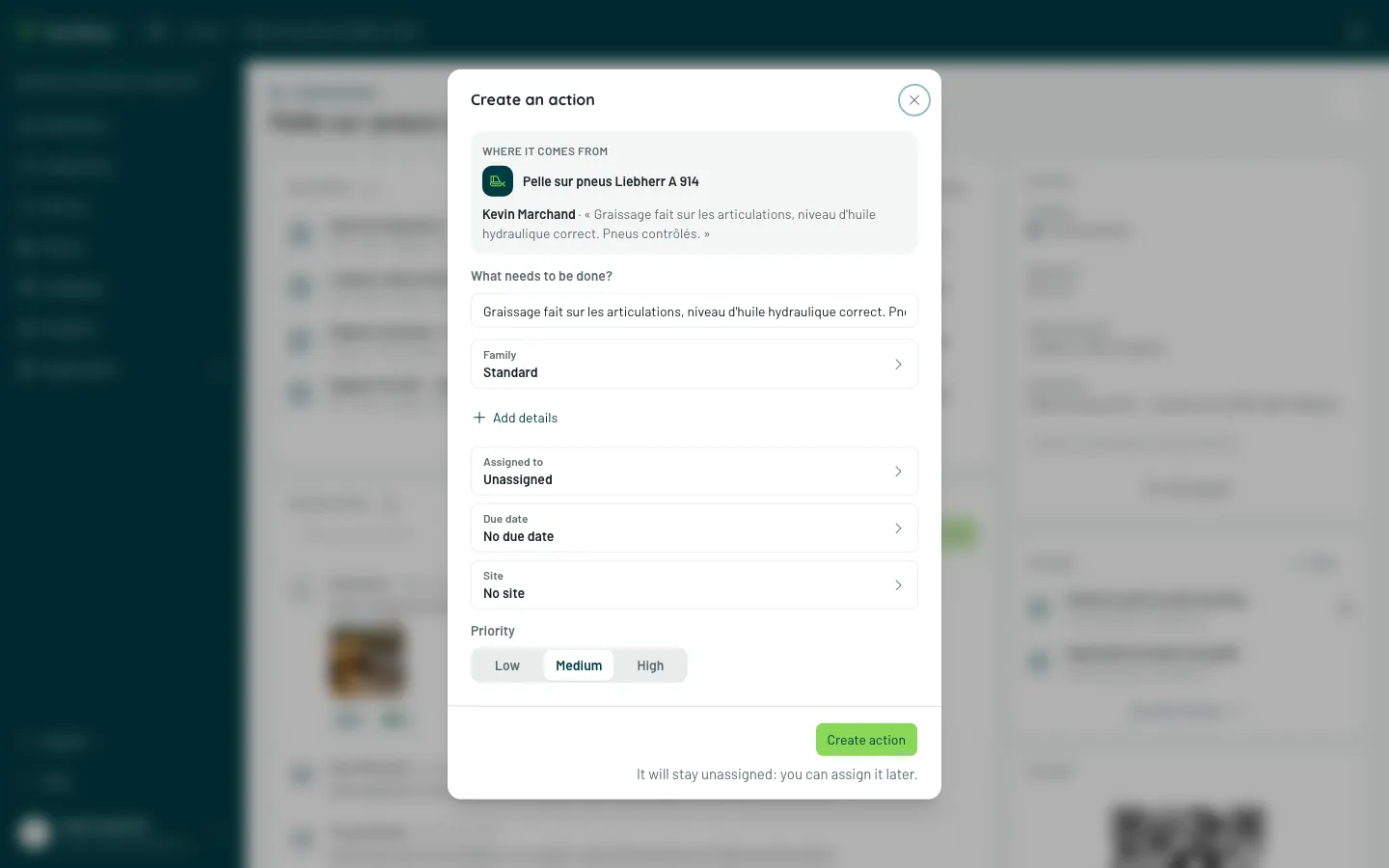
To have an action born from an observation: Create an action, under an anonymous report, or in the observation’s ⋮ menu. The form says where it comes from — the asset, and the observation as it was written — and offers its text as the title, to rephrase.
On a phone, the card fits on one line, under the documents: the number of open and completed actions, and the arrow to their list.
QR code
Section titled “QR code”PNG to print gives the QR code in large format, to stick on the asset; Copy link gives the address of its page. View the public page shows what someone who scans it without an account sees.
Regenerate QR code replaces the code: the old one no longer opens anything, you’ll need to stick the new one on. It’s the thing to do if a label has travelled too far.
Without an account
Section titled “Without an account”Three settings, independent of each other, say what the QR code’s page shows to someone without an account:
- Actions visible — the asset’s actions: those under way, “Taken care of”, and the five most recently resolved, with their title and date. Never a name;
- History visible — the observations and their photos. If the actions are visible too, each observation says whether it’s taken care of or resolved;
- Observations accepted — people can add some from the QR code, without an account: they’re signed “Anonymous”.
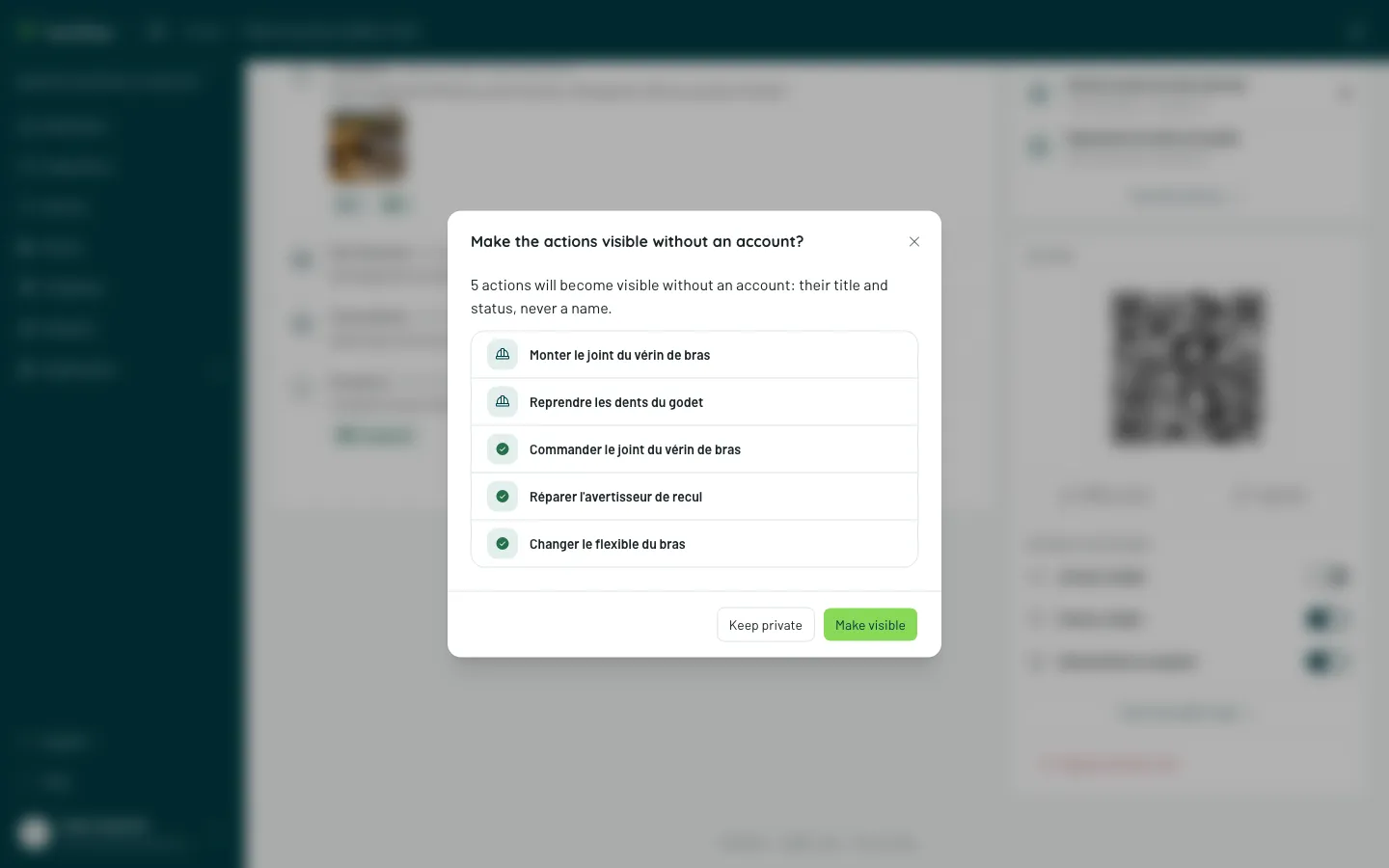
You can thus receive reports from the field without exposing the asset’s history, or show that what was reported is taken care of without showing who saw it. Making visible what already exists — the history, the actions — is confirmed first: Verifline shows what will be seen.
Who can do what
Section titled “Who can do what”Each gesture has its permission, in the Assets domain of roles:
- Access Assets opens the screen, and See assets, scan their QR codes the asset pages;
- See private documents and observations shows what isn’t public;
- Add an observation lets you write in an asset’s log, Remove their own observations take out the ones you wrote, and Remove an observation take out any of them;
- Create and edit an asset, its documents, its QR code, Delete an asset and Choose what is public are three separate permissions;
- Manage categories sits under Configure.
The groupings bring them together: View reads everything, private documents and observations included; Contribute adds observations; Manage gives the rest, except categories. The Administrator and the Fleet manager hold Manage and Configure; the Inspector and the Site lead Contribute; the Quality manager and Management View.
The assets’ actions have their own permission, in the Actions domain: See the actions of the assets you see. With it, whoever sees an asset also sees its actions, even those they neither created nor received; without it, only their own. Every Verifline role that sees assets holds it. Moving an action forward follows the actions permissions — see Track actions. Making the actions visible without an account also takes seeing them.