The action feed
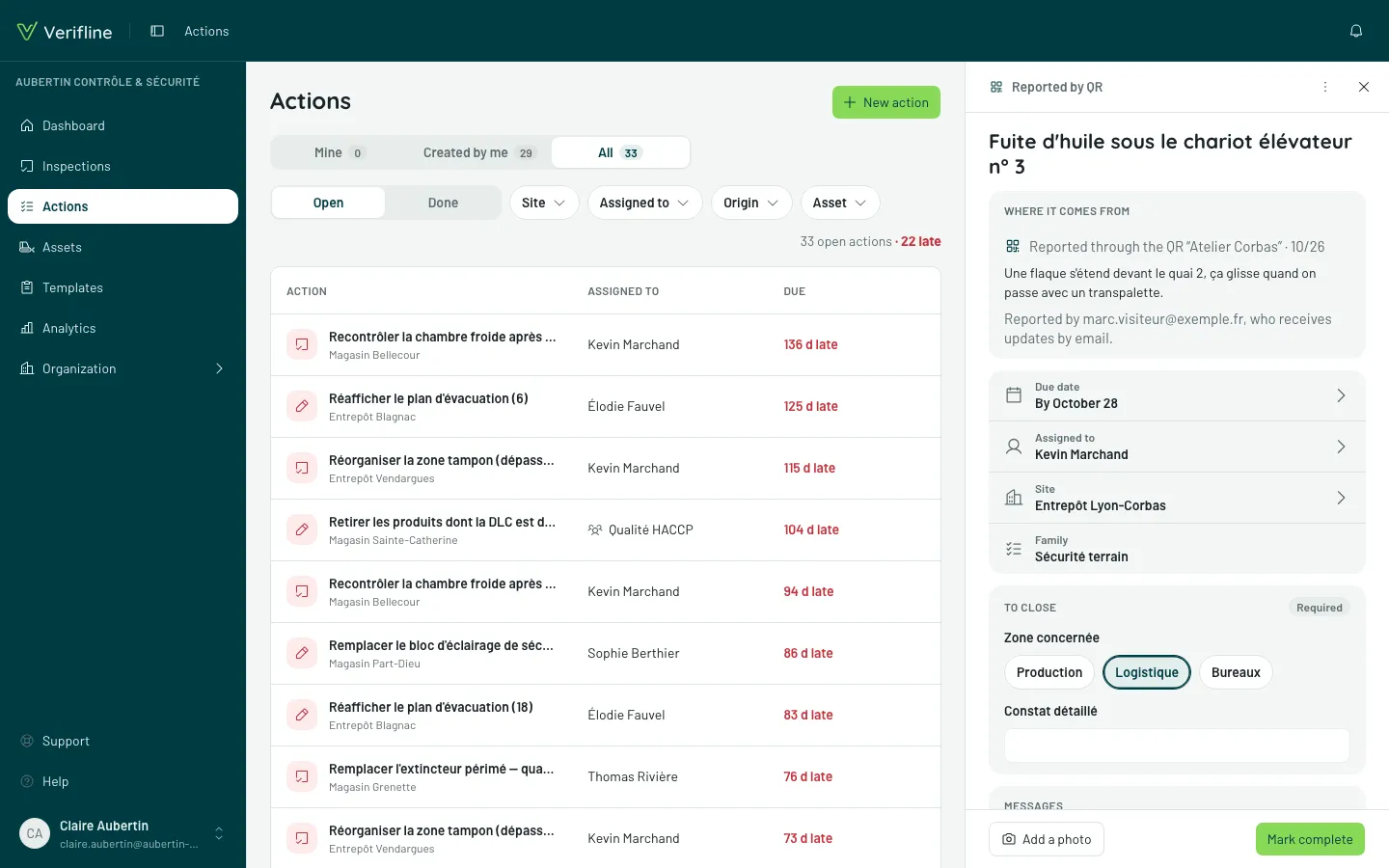
An action’s page tells its whole life, in the order you read it in the field: at the top the title and its details, then cards.
- Where it comes from: the question and its answer when it comes from an inspection, with its photo, the inspection and its date (« Safety walk, 10/14 ») and See the inspection; the report when it comes from a QR code — the photo, what was said, who reported it. An action created by hand has no such card.
- The key facts, one row per setting: the Due date in plain words (« By November 26 », or « 3 days late », in red), Assigned to (« Me », a name or « Unassigned », with « Your group », « Group », « Site » or « External » beside it), the Site, the Priority — and the Family, when it asks for or removes something. For an action created by hand, the foot of the card says where it comes from: « By Claire Aubertin on 07/03 ».
- To close: the questions of the family, to fill in on the spot, when it asks any.
- the Photos, then the Messages.
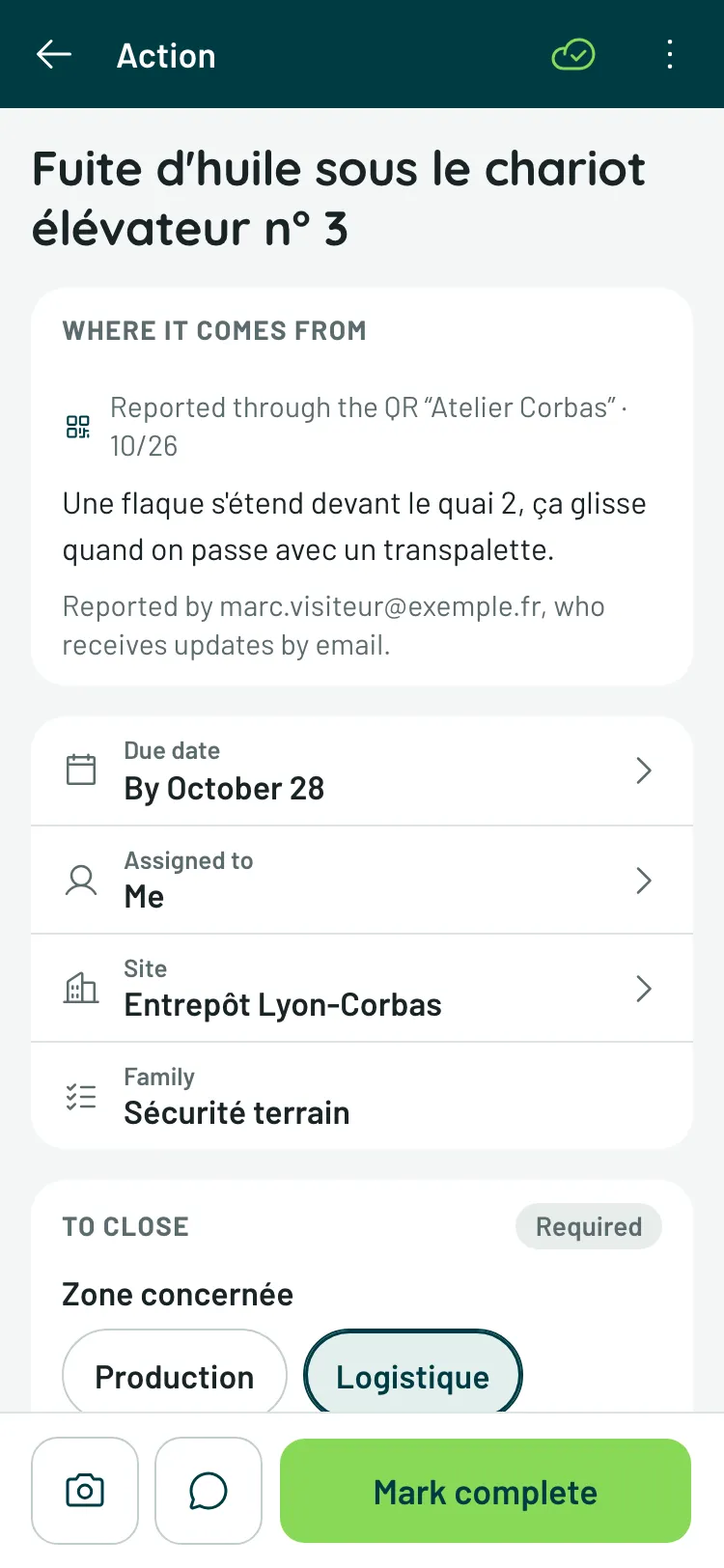
On a phone, the page fills the screen and its action bar stays at the bottom, under the thumb. On a computer or a tablet, there is no full page: the page always opens on the actions table, beside it — or over it, on a tablet —, and a notification or a link to an action lead there too.
Editing on the spot
Section titled “Editing on the spot”If you can move the action forward — it is assigned to you, to your group or to your site, you created it, or you manage actions —, every row of the key facts carries a chevron: tapping it opens the same choice as at creation. The change is saved at once; without a network, it goes as soon as the device is back online. Reassigning waits for its button, Reassign to …, to leave room for a word (Add a note). A completed action can no longer be edited: reopen it first.
Only reassignments, status changes and messages leave a trace in the thread: a change of due date, site or priority does not show there.
Without the right to move the action forward, no row carries a chevron, and the bottom of the page says so: « You’re following this action; Nadia Benali, who is in charge of it, moves it forward. » — or, when nobody is assigned, « You’re following this action; nobody is in charge of it yet. »
The messages
Section titled “The messages”Messages read as bubbles, and facts in small print between them; the card’s badge counts the messages, from the first one. An action created and assigned in one go takes a single line there: « Claire Aubertin created the action and assigned it to Kevin Marchand ». On a tablet or a computer, three tabs sort them:
- All — the chronological mix, the story as it happened;
- Comments — the conversation alone: messages from members (including the note left while reassigning or editing the action) and from the external contributor;
- History — the facts: creation, assignments (the first one as well as the next, including a preset QR’s), status changes — who, what, when.
On a phone, everything reads as one thread, in order.
A message is text: on a phone, Write a message (the keyboard microphone lets you dictate); on a computer, you type it straight into the thread, then Comment. Photos go through Add a photo (JPEG, PNG, WebP or HEIC) and are filed in their card. Participants are notified of each other’s messages — the conversation moves without chasing.
A file that won’t open
Section titled “A file that won’t open”Attached files go through an antivirus. Instead of a photo or a link, a file may show its name and one of these sentences:
- Scan in progress — a PDF or Office document sent by someone without an account (external contributor, QR code) is being checked. It opens as soon as it is found clean, usually within moments; photos show right away.
- File removed: it contained malware — the antivirus caught it: it no longer opens, for anyone, neither in the action nor in the report. Ask its author to send you the document another way.
- File temporarily unavailable — the scan could not be done. The file stays closed meanwhile: try again a little later.
The same sentences show on the action’s no-account page, under an inspection’s photos, and on an asset’s page as on its QR code page.
Closing, reopening
Section titled “Closing, reopening”At the bottom of the page, Mark complete, next to Add a photo — and, on a phone, Write a message. Mark complete opens a sheet: A photo after the work, the family’s closing questions, A message (optional). While a required question is empty, the sheet says so — « Answer “Area concerned” to close it. » — and the button waits.
A completed action says so at the bottom of its page, Action completed; Reopen goes back when the field says no, it was not fixed. Both gestures show in the history, and notify the creator and the assignee — and the person who reported the action through a QR code, if they left their address.
The read-only public link
Section titled “The read-only public link”The page’s ⋮ menu, Share links, produces a read-only public link: the action’s page, viewable without an account, without writing to it. To keep a requester, a client, a neighbouring department informed — without handing them the pen.
A link takes the action outside the organization: Share links is offered only to people who work the action and can create actions — the right to view actions alone publishes nothing.
Deleting an action
Section titled “Deleting an action”The ⋮ menu offers Delete to the person who created the action, and to people who manage actions. The assignee works the action without being able to delete it: it isn’t theirs.