Finish and review
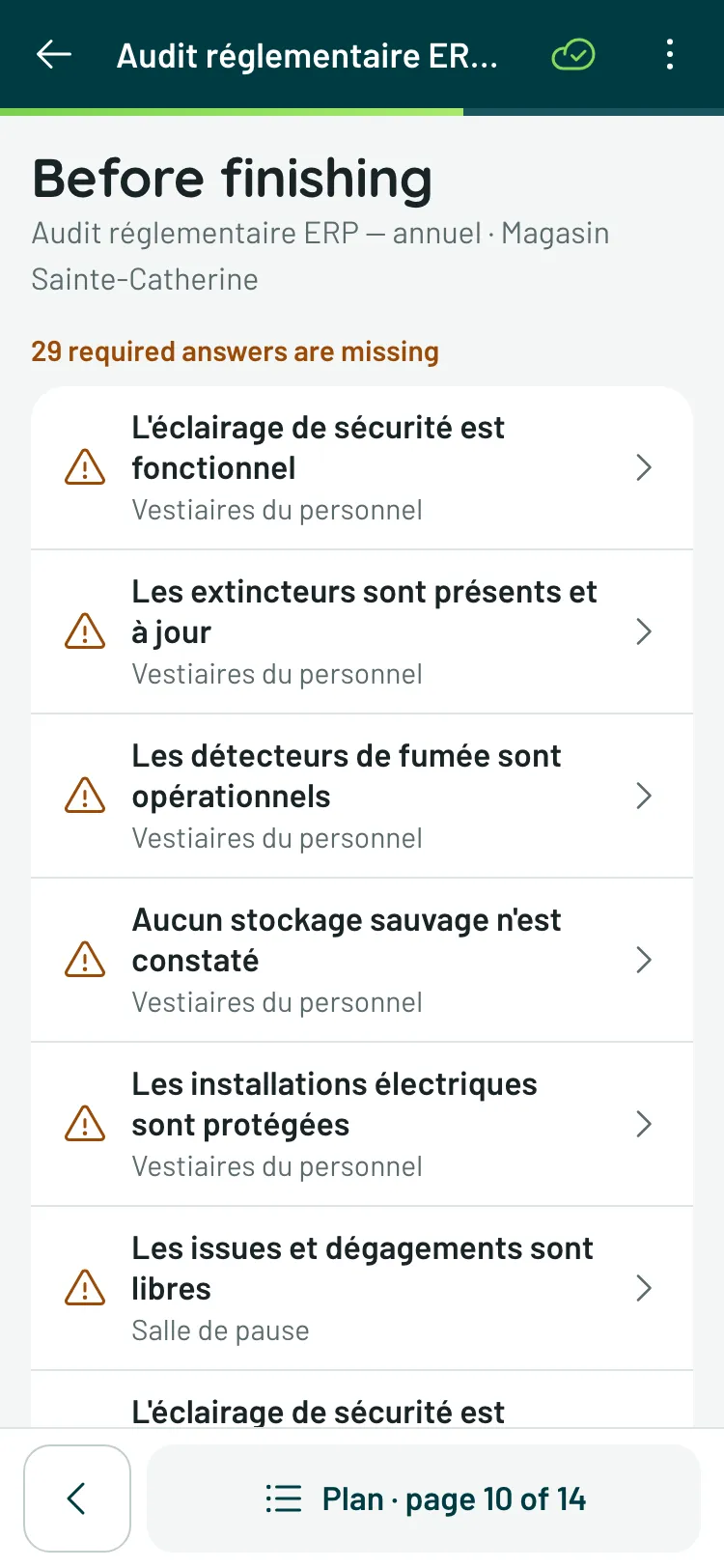
After the last question, capture moves to the Before finishing screen — in “Whole page”, it is Finish… at the bottom of the last page. You can also reach it at any time through Finish… at the foot of the plan, through the ⋮ → Finish the inspection… menu, or on a computer through Check and finish, in the right-hand column of capture.
The screen says what is missing, in the order to deal with it:
- the early end, if an answer closed the run — the following questions are not asked;
- the required answers that are missing;
- the answers waiting for what they require — a photo, a note or an action (“Missing a photo”);
- the flagged answers, with how many already have an action.
Two tiles then count the answers given and the photos. Tap a line: capture takes you back to the question. While something is missing, Finish the inspection waits, and says so: “Complete these answers to finish.” You do not close an inspection with holes in it. On a template with several pages, each line also gives the page of its question.
Finish the inspection closes it: the score is computed, the state moves to Completed, and the recipients of “Notify on completion” rules are told.
- On a phone, the Inspection completed screen shows the score and what it produced — answers, flagged, actions created, photos — with View report and Review answers; the arrow in the header takes you back home. Reopening a completed inspection later brings you back to this screen; Review answers opens the summary.
- On a computer, the summary opens right away.
Finished offline, it says so: “It will be sent once you’re back online.”
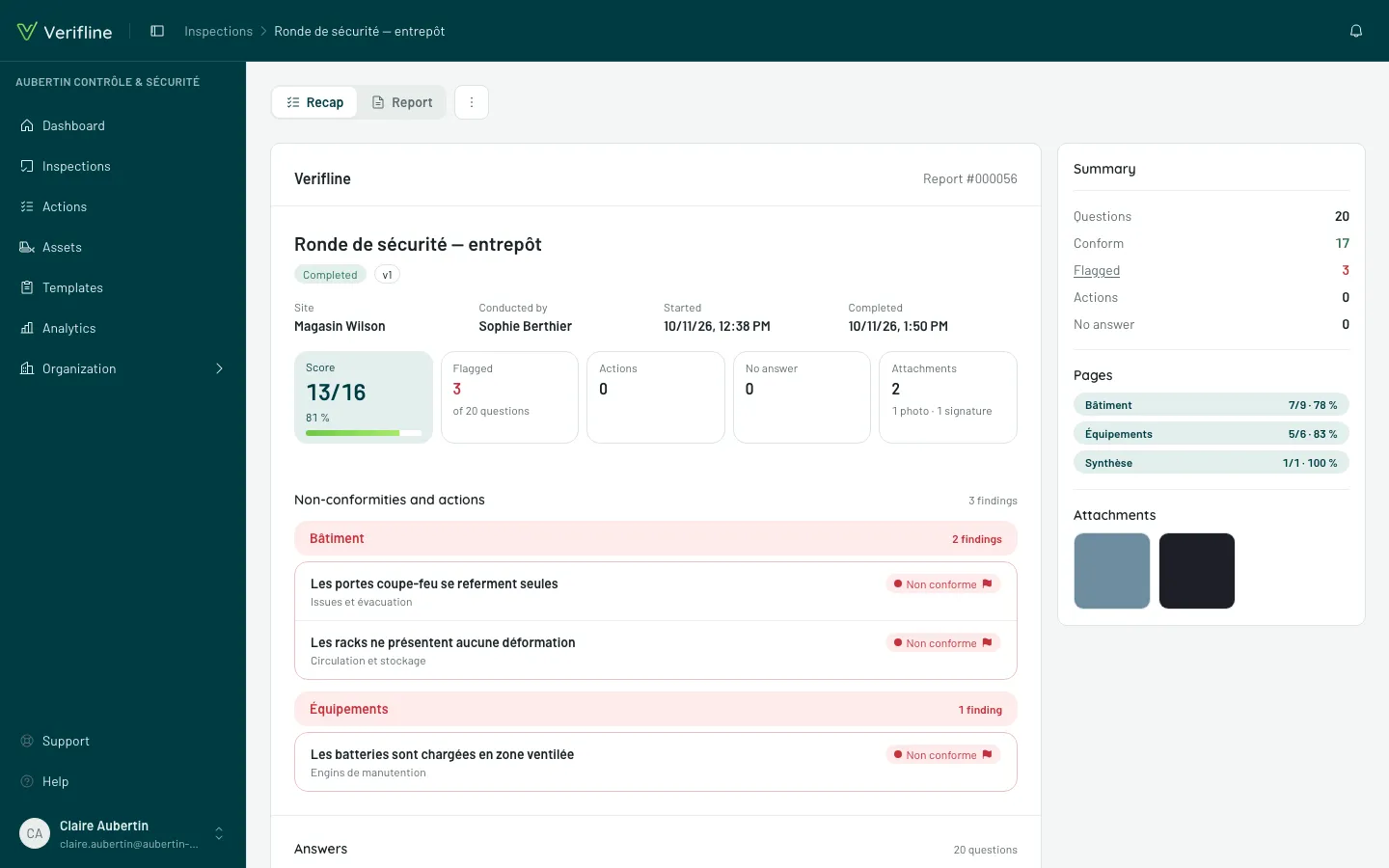
The summary, in three bands
Section titled “The summary, in three bands”On a computer, the summary carries two tabs, Recap and Report. It reads in three bands:
- The header and the numbers — the site, the conductor, the dates, then five boxes: Score (when the template is scored), Flagged, Actions (including the overdue ones), No answer, Attachments.
- Non-conformities and actions — the findings, grouped by questionnaire page, each with the colored answer, its photos and the action born from it; its handling state reads from here.
- Answers — the full record, question by question. A deviating row points to its finding instead of repeating its detail. A repeatable section unrolls each of its occurrences there.
On a computer, the Summary card, alongside, repeats the counts — including the Conform answers — and the detail by page.
Three bands, three readings: the executive stops at the numbers, the supervisor works the findings, the auditor unrolls the record.
After closing
Section titled “After closing”The summary is made to be read — and the report to be handed over. A completed inspection can no longer be changed: its answers stand as they were given. What still needs fixing is followed up through actions, whose state reads here just as in the report.
The More options menu (⋮) — next to the tabs on a computer, in the top bar on a phone — offers two gestures to whoever holds the permission:
- Reopen — the inspection becomes editable again; its score is recalculated when it’s completed again;
- Delete — its answers and photos are deleted; its actions are kept.