The template editor
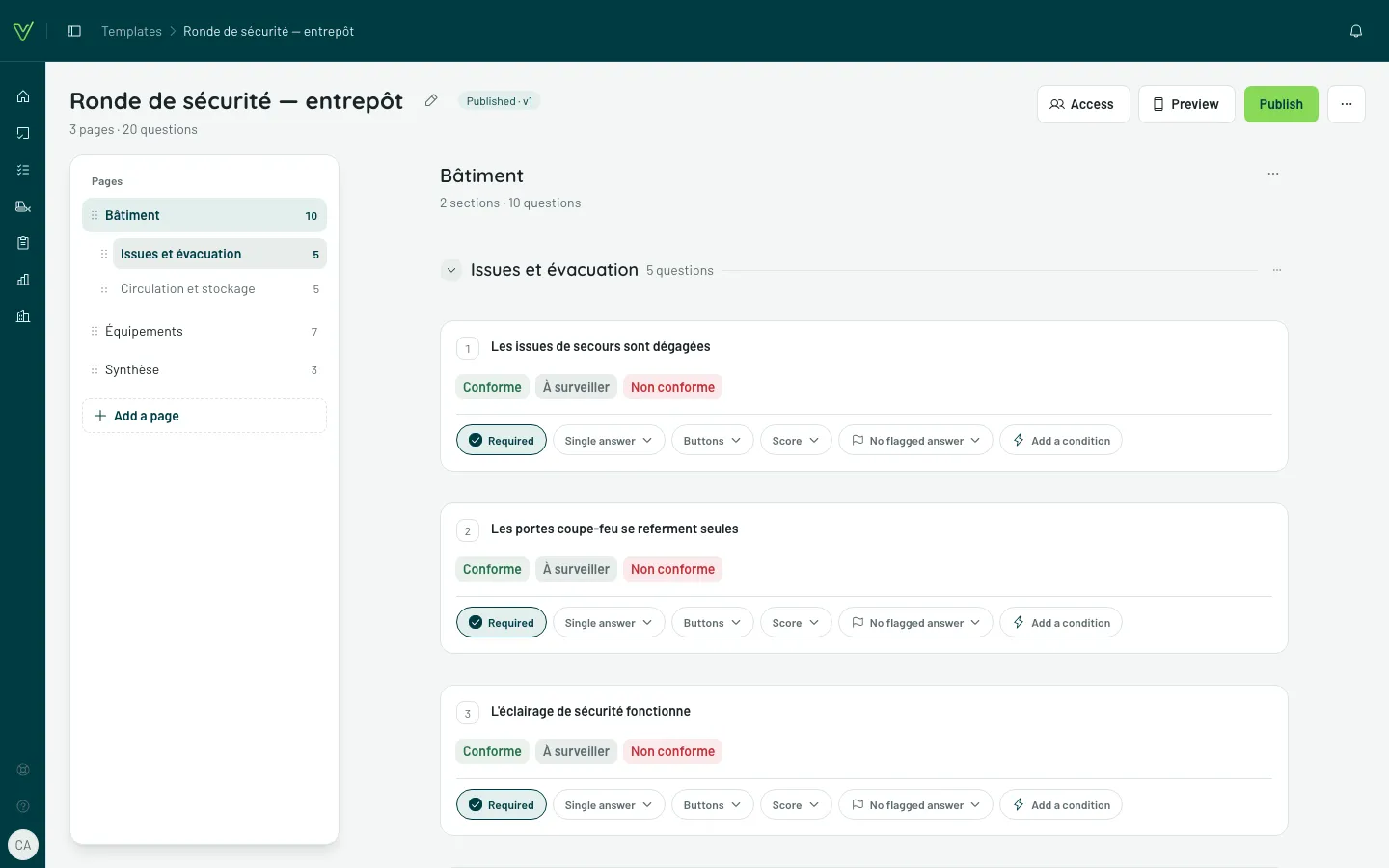
The editor shows your template the way the inspector will read it: one page at a time, each question with its answers and its logic spelled out in one sentence. Everything is edited where you read it, and saves at once: there is no Save button to hunt for.
Opening the editor
Section titled “Opening the editor”A template opens in the editor from the Templates list (its name, or Edit in its menu), from a site’s or a group’s page, and as soon as you create it — with New template or with AI. The sidebar collapses to make room: it opens again with one click, and goes back to how you left it when you leave the editor.
At the top, the template name (the pencil renames it), its status — Draft, Published · v2 or Unpublished changes — and its figures. On the right: Access, Preview, Assistant (when it is open to you), Publish and the More template options menu (⋯), which also offers Select questions, Response sets and Download the import template (CSV).
The pages are read in the left column, the open page in the middle; the preview and the assistant open in a column on the right.
Reading the template like the inspector
Section titled “Reading the template like the inspector”- The pages are listed on the left, under Pages, with their number of questions, and under the open page, its sections. A click takes you to the page, or to the section. The column follows your reading.
- Each question shows its number, its label, its answers as the inspector will see them, and its logic in one sentence (“If the answer is Non-Compliant: photo required”).
- Follow-up questions are asked under the question that triggers them, in an “Asked if the answer is…” block.
- A section is a heading that folds with a click on its arrow.
- At the bottom of the page, Next page takes you further.
The page name, at the top, and a section’s name are changed by clicking them: Enter or a click elsewhere saves, Esc gives up. The page’s ⋯ menu (Page options) also offers Rename the page.
Editing a question
Section titled “Editing a question”On a computer, everything is edited on the question’s card.
The label
Section titled “The label”Click it and type. Enter confirms, Esc doesn’t save, Shift+Enter starts a new line.
The answers
Section titled “The answers”Click the answers (or Change, which shows on hover). The This question’s answers window offers the sets In this template, the Standard sets, those From your organization, then the Other response types (text, number, date, photo…); the search filters them all. A choice applies at once.
At the bottom of the window:
- Write answers for this question only creates a list used here alone;
- New set… creates a set of this template and applies it to the question;
- Edit the “…” set changes the set of this template the question uses, for every question that uses it.
The details are in Response types and Response sets.
The settings
Section titled “The settings”They sit at the bottom of the card, and only what the type accepts shows:
- Required;
- Single answer or Several answers;
- Display (Buttons or Dropdown list), for one of your organization’s sets;
- Score: the question’s weight and each answer’s score — see Scores and weighting;
- the Flagged answers (“No flagged answer”, “2 flagged answers”);
- a number’s unit, a slider’s bounds;
- Add a condition, when the type accepts logic.
A settings window (score, bounds) saves when you click outside it.
The logic
Section titled “The logic”Add a condition, at the bottom of the card, or the lightning bolt that appears when you hover an answer (“If the answer is No…”) opens a condition written as a sentence in the card. Confirm saves it, Remove the condition deletes it; a condition already written reopens with a click on its sentence. It is all explained in Conditional logic.
Nothing is lost silently
Section titled “Nothing is lost silently”Esc closes without saving anything. If something new would be lost — a typed label, your own answers, a half-written condition, a score — the editor first asks Discard what you just wrote?. Opening another condition while a sentence is being written asks too.
Changing a question’s answers can remove the conditions that targeted the old ones: the editor says so beforehand (Change this question’s answers?), with how many conditions and follow-up questions would go. A condition that no longer targets anything shows as “Incomplete condition, to finish”: a click reopens it.
Adding pages, sections and questions
Section titled “Adding pages, sections and questions”- Below the last question of a page: Add a question or Add a section; at the end of a section: Add a question to the section.
- Between two items, on hover: Question or Section, to insert at that exact spot (inside a section, only Question).
- In the pages column: Add a page. The new page opens, its name ready to type.
A new question takes the answers of the question above it — or Yes / No / N-A at the top of a page —, and its label is ready to type: Enter saves it and creates the next one right below, Esc does not create it. A new section is called “New section”, its name ready to type.
Your questions already live in a spreadsheet? Paste them: starting from a spreadsheet.
Reordering, duplicating, deleting
Section titled “Reordering, duplicating, deleting”When you hover a question, two buttons appear at its top right: Duplicate the question and Delete the question. Its ⋯ menu adds Copy the question and Move to page…. Deleting a question that triggers others asks first: they go with it.
To move a question by hand, grab the handle on the left of the card and drop it further down the page, into a section or out of it — or on another page of the left column, where it lands at the end of the page. Follow-up questions stay with their question.
In the left column, every page and every section of the open page has its handle: a page reorders among the pages; a section reorders among its page’s sections, or moves, with its questions, to the end of another page you drop it on.
A section’s ⋯ menu offers Rename the section, Make repeatable (or Stop repeating), Add a question to the section, Duplicate the section, Copy the section, Move to page… and Delete the section. The page’s menu (Page options) lets you Delete the page, with its questions; inspections already carried out stay as they are. A template always keeps at least one page.
A repeatable section carries the Repeatable badge: the inspector fills it in as many times as there are things to check (a fire extinguisher, a room), adding, naming or deleting its occurrences during the inspection (capture). Only a section placed directly on the page repeats.
Several questions at once
Section titled “Several questions at once”A question’s number turns into a checkbox when you hover it; tick several, or choose Select questions in the template’s ⋯ menu. While selecting, every question shows its checkbox in place of its number, and every section shows its own in place of its arrow: a section’s checkbox ticks all its questions. A bar then offers Copy and Delete — and, when there is room, Select all and Make required. The rest is in its ⋯ menu: Make optional, Duplicate, Paste and Assistant (when it is open to you). Esc, or the bar’s cross, ends the selection.
A click on a question never selects it: only the checkbox does. Select all takes the questions of the page on screen, never those of other pages.
Copying from one template to another
Section titled “Copying from one template to another”What you copy — Copy the question, Copy the section, or Copy on a selection (Ctrl+C, Cmd+C on a Mac, works too) — pastes into any template, in the same browser: Paste between two items, Paste the copied item here (or “… the 3 copied items here”) at the end of a page or a section, or Ctrl+V. Answers, logic and follow-up questions come along; if an identical response set already exists in the destination template, it is reused.
What you copy belongs to you alone, in this organization: someone else on the same device, or you in another organization, cannot paste it. The copy is cleared when you sign out.
Seeing the result on a phone
Section titled “Seeing the result on a phone”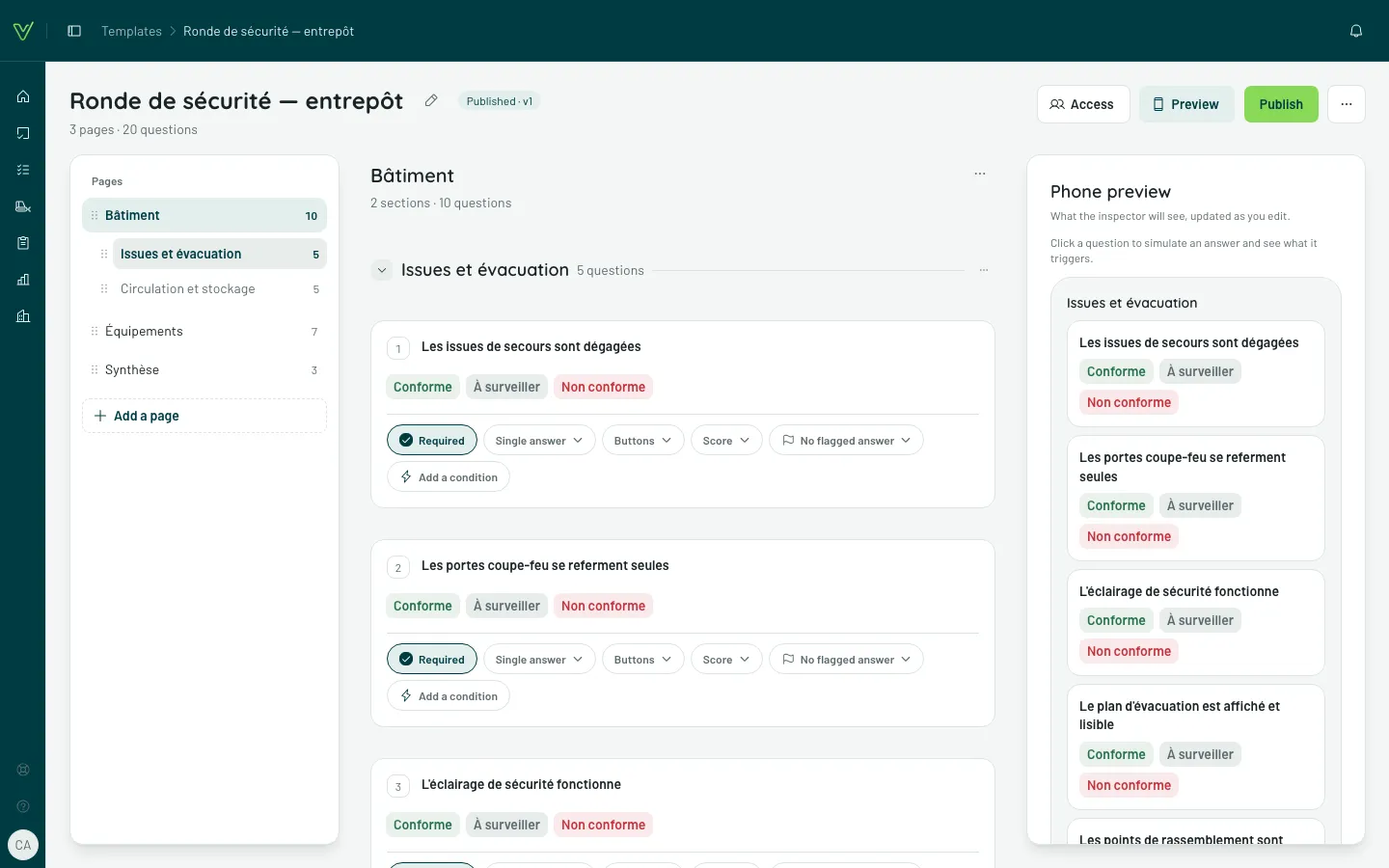
Preview opens the page’s Phone preview on the right: what the inspector will see, updated as you edit. Click a question in the preview to simulate an answer and see what it triggers; Back to the page returns to the whole page.
Assistant opens the column of the AI assistant, when it is open to you.
On a phone
Section titled “On a phone”The editor adapts to the screen. The page name, at the top, opens the list of pages to switch (and Add a page). The bottom bar offers Add (a question, a section, or the copy waiting to be pasted), Assistant (when it is open to you) and Preview.
Tapping a question opens it in a panel that slides up from the bottom of the screen, with the same settings as on a computer and, if its type accepts it, its Logic (Add logic). Save, or closing the panel, saves; Cancel goes back to how it was when you opened it. To move a question to another page, use Move to page… in its ⋯ menu.
Publish
Section titled “Publish”Publish, top right, freezes a new version for upcoming inspections, and confirms it (“Version 2 published”) — see Publish a template. While a published template has changes not yet published, Discard changes, next to it, offers to Go back to the published version; on a phone, it is in the ⋯ menu (Discard unpublished changes).